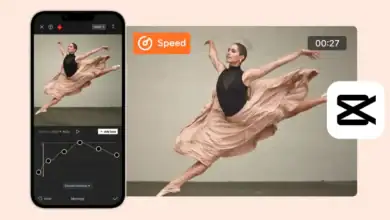
CapCut Masking Tutorial for Creative Effects
Video editing has evolved from simple cutting and trimming into a powerful storytelling medium. One of the most creative tools that modern editors use to produce cinematic and engaging visuals is masking. If you are using CapCut for content creation, understanding how masking works can significantly improve the quality and originality of your videos.
This detailed guide explains how masking works in CapCut, how to apply it correctly, and how to use it for professional level creative effects. Whether you are editing short form content, YouTube videos, or promotional reels, this tutorial will help you unlock advanced visual techniques inside CapCut.
What Is Masking in CapCut
Masking is a video editing technique that allows you to hide or reveal specific parts of a video clip. Instead of applying effects to the entire frame, masking enables you to target only a selected area. This gives you precise control over how different layers interact with each other.
In simple terms, a mask works like a digital stencil. You choose a shape or custom area, and only that portion of the clip becomes visible or editable. Everything outside the mask remains hidden or unaffected.
Masking is widely used in professional editing software, and CapCut has made this advanced feature accessible to beginners and mobile editors.
Why Masking Is Important for Creative Video Effects
Masking is not just a technical feature. It is a creative storytelling tool. With masking, you can:
- Create seamless transitions
- Add cinematic split screen effects
- Reveal text behind objects
- Make double exposure visuals
- Highlight subjects with precision
- Blend multiple clips naturally
- Simulate advanced VFX styles
Content creators on platforms like YouTube and TikTok frequently use masking to produce eye catching videos that increase watch time and audience engagement.
Types of Masks Available in CapCut
CapCut provides several preset mask shapes. Each serves a specific purpose depending on the effect you want to achieve.
1. Linear Mask
Creates a straight line mask. Ideal for split screen transitions and smooth slide reveals.
2. Mirror Mask
Duplicates one side of the video to create reflection effects. Useful for symmetrical visuals.
3. Circle Mask
Reveals content in a circular shape. Commonly used for spotlight or focus effects.
4. Rectangle Mask
Allows rectangular cropping for layered editing.
5. Heart or Custom Shapes
Useful for stylized and creative content such as romantic or aesthetic videos.
Each mask includes feathering controls, rotation options, and adjustable positioning to refine your effect.
Step by Step CapCut Masking Tutorial
Follow this structured process to apply masking correctly.
Step 1: Import Your Clips
Open CapCut and create a new project. Import at least two video clips if you want to create layered effects.
Step 2: Arrange Layers
Place your base clip on the main track. Add the second clip as an overlay. Masking works best when you have layered content.
Step 3: Select the Overlay Clip
Tap on the overlay clip. Scroll through the editing options and select the Mask feature.
Step 4: Choose a Mask Shape
Select a shape based on your desired effect. Adjust the size and position using pinch and drag gestures.
Step 5: Adjust Feathering
Feathering softens the edges of your mask. Increasing feather creates smoother blending between layers, which makes the transition look natural.
Step 6: Animate Using Keyframes
Add keyframes to move the mask across the screen. This creates dynamic transitions and reveal effects.
Step 7: Preview and Refine
Play the clip to ensure smooth blending. Adjust opacity, blending mode, or color grading for a more cinematic result.
Creative Effects You Can Create with Masking
Masking becomes powerful when combined with keyframes, motion, and transitions. Below are advanced creative ideas.
Cinematic Slide Transition
Use a linear mask and animate it from left to right. This creates a professional slide reveal between two clips.
Double Exposure Effect
Layer two clips. Apply a mask to one and reduce opacity. This produces an artistic blended visual.
Object Reveal Effect
Mask around a subject and animate the mask so text appears behind them. This is perfect for motivational or promotional videos.
Clone Effect
Duplicate the same clip and reposition each layer. Use masking to show multiple versions of yourself in one frame.
Sky Replacement Style Effect
Mask the sky portion of your video and place a dramatic sky overlay underneath. Adjust feathering for realism.
Best Practices for Professional Results
To ensure your masking looks polished and high quality, follow these expert recommendations.
- Use high resolution footage
- Avoid harsh mask edges unless stylistically required
- Match lighting and color between layers
- Use subtle feathering for realism
- Combine masking with motion blur for smoother animation
- Keep transitions natural and not overly complex
Professional editors often combine masking with advanced editing techniques such as color grading and sound design to enhance immersion.
Common Mistakes to Avoid
Many beginners misuse masking and create unrealistic results. Avoid these mistakes:
- Over feathering which causes blur
- Misaligned layers that break realism
- Ignoring lighting differences
- Adding too many animated masks in one scene
- Using masking without purpose
Masking should support storytelling, not distract from it.
How Masking Improves Content Performance
High quality visual effects increase viewer retention. When viewers see smooth transitions and creative visuals, they are more likely to watch until the end.
This is especially important for short form content algorithms. Platforms reward engaging and visually appealing videos with better reach.
Masking allows creators to stand out in competitive niches such as tech tutorials, travel vlogs, motivational edits, and cinematic reels.
Advanced Masking Strategy for Content Creators
If you run a video editing website or create tutorials regularly, mastering masking gives you authority in your niche.
To build expertise:
- Practice recreating viral transitions
- Study cinematic breakdowns
- Experiment with layered compositions
- Test different blending modes
- Analyze viewer engagement metrics
Consistent practice leads to creative confidence and professional results.
Final Thoughts
Masking is one of the most powerful creative tools inside CapCut. It transforms ordinary edits into cinematic visuals and allows you to produce professional quality content directly from your mobile device or desktop.
By understanding mask shapes, feathering, layering, and keyframe animation, you can create dynamic transitions, artistic overlays, and advanced visual effects without needing complex software.
If you consistently apply these techniques and refine your editing skills, you will produce visually engaging videos that capture attention and increase audience retention across all major social platforms.
Start experimenting with masking today and elevate your video editing creativity to the next level.