How to Edit Videos in CapCut for Beginners Step by Step Guide
Video marketing and short form content continue to dominate digital platforms. Whether you are creating content for social media, YouTube, business promotion, or personal projects, video editing is now an essential skill. One of the easiest tools to start with is CapCut.
CapCut provides a beginner friendly interface combined with powerful professional features such as multi layer editing, AI tools, keyframes, transitions, and color adjustments. Unlike complex desktop software, CapCut simplifies the editing process while still allowing creative flexibility.
In this comprehensive beginner guide, you will learn exactly how to edit videos in CapCut step by step, along with practical tips that improve video quality and audience engagement.
Why CapCut Is Ideal for Beginners
Before starting the editing process, it is important to understand why CapCut is suitable for new editors.
1. Clean and Simple Interface
The layout is easy to understand. The timeline is clearly visible at the bottom, preview window at the center, and editing tools are organized in accessible menus.
2. Built In Editing Tools
CapCut includes transitions, filters, text animations, music, sound effects, and AI tools without requiring third party plugins.
3. Beginner to Advanced Growth
You can start with basic trimming and gradually move toward advanced features such as masking, keyframes, and velocity edits.
4. Optimized for Social Platforms
CapCut allows direct exports suitable for platforms like TikTok, YouTube, and Instagram, making it ideal for content creators.
For beginners, having all tools in one place reduces confusion and speeds up learning.
Step 1: Open CapCut Application
To begin editing.
- Open the application
- Sign in using your account
- Allow storage and media permissions
Granting permissions ensures smooth importing and exporting of videos. Make sure your device has enough storage space to prevent export errors.
Step 2: Create a New Project
Once inside the app:
- Tap on New Project
- Select your videos or photos from the gallery
- Tap Add
Your media will now appear on the timeline.
Understanding the Timeline
The timeline is the heart of video editing. It allows you to:
- Rearrange clips
- Trim unwanted sections
- Add music and text
- Insert transitions and effects
Spend a few minutes exploring the interface before making changes. Familiarity improves editing speed.
Step 3: Trim and Cut Your Clips
Raw footage often contains mistakes, pauses, or unnecessary parts. Trimming helps you remove those distractions.
How to Trim a Clip
- Tap the clip on the timeline
- Drag the start or end handles inward
- Adjust until only the useful portion remains
How to Split a Clip
- Move the playhead to the exact cutting point
- Tap Split
- Delete the unwanted segment
Editing Tip
Keep your intro short. Viewers decide within the first few seconds whether they will continue watching. Remove long pauses and filler words to improve engagement.
Step 4: Arrange Clips in Proper Order
After trimming:
- Drag clips left or right to reorder them
- Make sure the story flows logically
- Ensure smooth transitions between scenes
A good video follows a simple structure:
- Hook
- Main content
- Call to action
Even beginners should focus on storytelling rather than random clip placement.
Step 5: Add Transitions Between Clips
Transitions connect clips smoothly and enhance professionalism.
- Tap the small transition icon between two clips
- Choose from fade, slide, zoom, blur, or other styles
- Adjust transition duration
- Apply changes
Best Practice
Do not use different transitions between every clip. Consistency looks more professional. Simple fade transitions work best for most videos.
Step 6: Add Text and Titles
Text increases viewer retention and improves accessibility.
- Tap Text
- Select Add Text
- Type your message
- Customize font, color, size, and animation
- Adjust timing on the timeline
- You can use text for:
- Video titles
- Subtitles
- Important highlights
- Calls to action
Pro Tip – Use one or two fonts only. Too many font styles make videos look unprofessional.
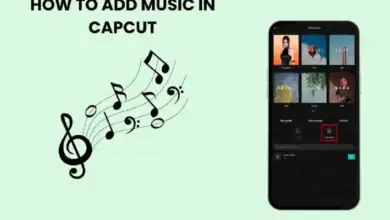
Step 7: Add Music, Voiceover, and Sound Effects
Good audio can completely transform your video quality.
- Tap Audio
- Choose background music or sound effects
- Add voiceover if needed
- Adjust volume levels
Audio Balance Rule
- Background music: 30 to 40 percent
- Voice narration: 80 to 100 percent
- Always check audio clarity before exporting. Poor audio quality can reduce viewer engagement.
Step 8: Apply Filters and Color Adjustments
Color correction improves video appearance and consistency.
- Select a clip
- Tap Adjust
- Modify brightness, contrast, saturation, and temperature
You can also apply preset filters, but avoid overusing them. Natural looking colors perform better than heavily edited visuals.
Beginner Advice – If your video looks dull, slightly increase contrast and saturation. If it looks too harsh, reduce highlights.
Step 9: Adjust Video Speed
Speed changes help create dramatic or dynamic effects.
- Tap the clip
- Select Speed
- Choose normal or curve mode
- Adjust playback speed
Use slow motion for emotional scenes and fast motion for tutorials or time lapse content.
Step 10: Add Overlays and Creative Effects
Overlays allow you to layer videos or images on top of your main footage.
- Tap Overlay
- Add secondary media
- Resize and reposition
This feature is useful for:
- Picture in picture videos
- Reaction content
- Tutorial demonstrations
You can also experiment with stickers and motion graphics to make your content more engaging.
Step 11: Review and Make Final Adjustments
Before exporting:
- Watch the entire video carefully
- Check text spelling
- Ensure smooth transitions
- Confirm audio balance
- Remove any unnecessary gaps
Previewing helps you catch mistakes that are often missed during editing.
Step 12: Export in High Quality
When your edit is complete:
- Tap the export button
- Select resolution such as 1080p
- Choose frame rate such as 30fps or 60fps
- Export the video
Recommended Settings
- 1080p resolution for social media
- 60fps for smooth motion
- High bitrate for better clarity
Once exported, share your content across your preferred platforms.
Beginner Editing Workflow Summary
For easy reference, follow this workflow:
- Import media
- Trim unwanted parts
- Arrange clips logically
- Add transitions
- Insert text and captions
- Add music and voiceover
- Adjust colors
- Review and export
Following a structured workflow ensures efficiency and professional results.
Common Mistakes Beginners Should Avoid
Many new editors make similar mistakes. Avoid these to improve quickly:
- Overusing effects and animations
- Ignoring audio clarity
- Adding too many transitions
- Using inconsistent fonts
- Exporting in low resolution
- Making videos unnecessarily long
Remember, clean and simple editing often performs better than complicated edits.
Final Thoughts
Editing videos in CapCut is straightforward once you understand the basics. With practice, you will gain confidence and develop your own editing style. Focus on storytelling, maintain clean visuals, balance audio properly, and avoid unnecessary effects.
CapCut gives beginners the power to create professional looking videos without complex software. Start simple, experiment gradually, and refine your workflow with each project.