How to Make Slow Motion Edits in CapCut
Slow motion editing is one of the most captivating techniques in video creation. It allows ordinary footage to be transformed into cinematic masterpieces that capture the viewer’s attention. Whether you are a social media influencer, YouTuber, or casual creator, mastering slow motion can elevate your content and give it a professional polish. In this comprehensive guide, we will walk you through how to make slow motion edits in CapCut step by step while also sharing expert tips to make your videos visually stunning and smooth.
What is Slow Motion Editing
Slow motion editing is the process of deliberately reducing the playback speed of video footage so that movement appears slower than normal. This allows audiences to see details and nuances that are otherwise missed in real time. In professional filmmaking, slow motion is used to create tension, highlight emotion, and emphasize action. For example, a dancer’s twirl or a water splash becomes more dramatic when slowed down.
CapCut, developed by ByteDance, is a user-friendly mobile editing app that provides advanced slow motion tools. It combines simplicity with powerful functionality, making it accessible to beginners while offering advanced features for experienced editors. The app allows precise control over speed and supports features like curve speed and optical flow, which are essential for producing smooth slow motion clips.
Why Use Slow Motion Edits
Using slow motion in videos has multiple benefits. Here are some reasons why creators rely on this technique:
Highlighting Details
Slow motion draws attention to movements and expressions that are otherwise too quick to notice. For example, in sports clips, the flick of a wrist or a jump becomes more noticeable and impactful. This helps the audience appreciate subtle elements that make your footage unique.
Adding Emotional Impact
Slowing down key moments in a video enhances the storytelling by adding drama and emotional weight. A slow-motion shot of someone laughing, crying, or performing an important action can make the audience feel more connected to the story.
Creating a Signature Style
Influencers and brands often use slow motion as part of their content style. It signals quality and professionalism, distinguishing your videos from others. When applied strategically, it can help establish a recognizable editing style that your audience associates with your brand.
Versatility Across Content Types
Slow motion is not limited to action shots. It works for product showcases, tutorials, travel videos, and cinematic vlogs. Its versatility makes it a must-have tool in any editor’s toolkit.
Preparing Your Footage
Proper preparation is crucial for high-quality slow motion edits. The key factor is the frame rate of your video. Frame rate determines how many individual frames are captured per second. Standard videos are usually 30 frames per second (fps), while slow motion benefits from higher frame rates such as 60 fps, 120 fps, or even 240 fps. Higher frame rates provide smoother results when slowing down footage.
Even if your footage was recorded at a lower frame rate, CapCut offers tools like optical flow, which intelligently generates frames between existing frames to create smoother slow motion. However, starting with high-quality footage will always yield the best outcome. Also, ensure your video is well-lit and stable because shaky or low-light footage becomes more noticeable in slow motion.
Step by Step Slow Motion Edits in CapCut
CapCut provides two main methods to achieve slow motion: standard speed adjustment and curve speed adjustment. Both methods allow flexibility and creative control.
Step One: Import Your Video
- Open CapCut on your smartphone or tablet.
- Tap New Project to start editing.
- Browse your gallery and select the clip you want to edit.
- Tap Add to open the clip in the timeline for editing.
Step Two: Locate the Speed Controls
- Tap on your video clip in the timeline to select it.
- At the bottom of the screen, a menu of editing options will appear.
- Scroll through the options and tap Speed to access all speed control tools.
Step Three: Choose Your Slow Motion Method
Standard Slow Editing:
Standard slow editing changes the speed of the entire clip uniformly. It is simple and effective for most use cases.
- Under Speed, select Normal.
- Drag the slider to the left to reduce the speed.
- 50 percent speed is ideal for moderate slow motion.
- 25 percent or lower gives dramatic cinematic slow motion.
- Tap play to preview your changes and adjust as necessary.
Slowing too far can cause choppy playback, so fine-tuning is essential for smooth motion.
Curve Slow Motion:
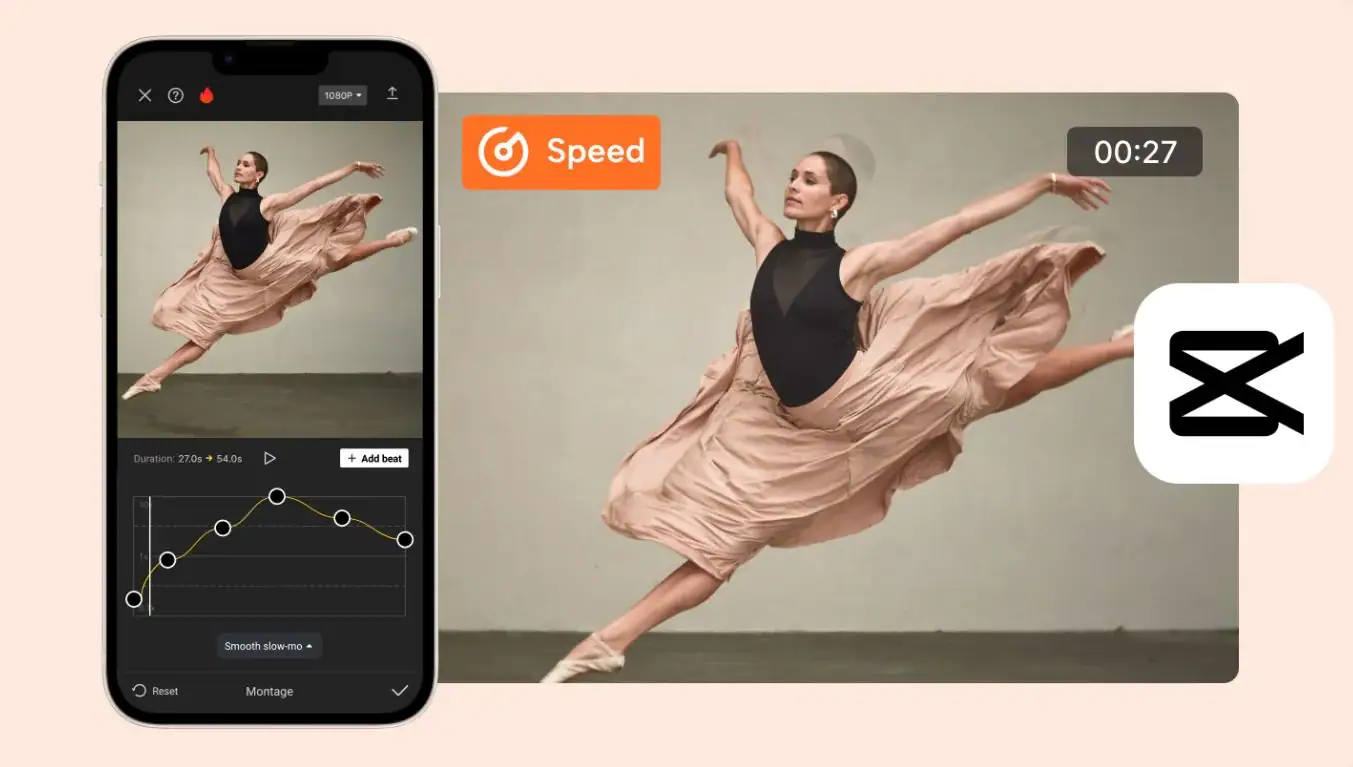
Implementing Curve slow motion provides advanced control over how the speed changes throughout the clip.
- Tap Curve within the speed menu.
- Choose from preset curves like Ease In, Ease Out, or Ease In Out, or create a custom curve for precise control.
- Drag points on the curve to adjust the speed at different points in the clip.
- This allows for smooth ramping effects, where the video gradually slows down or speeds up in specific sections.
Using curve slow motion is ideal for action sequences, cinematic transitions, and storytelling that flows naturally.
Step Four: Enhance Smoothness with Optical Flow
For clips recorded at lower frame rates, CapCut’s Optical Flow feature can help.
- Within the Speed menu, scroll to Optical Flow.
- Enable it to generate intermediate frames, resulting in smoother slow motion.
This is particularly useful for complex scenes, such as moving crowds or fast actions. However, overuse may create artifacts, so always preview before finalizing.
Step Five: Add Supporting Edits
Slow motion edits are most effective when combined with complementary edits.
- Add background music that matches the rhythm of your slow motion for stronger impact.
- Apply color grading to create a cohesive and cinematic look.
- Use subtle transitions when combining multiple slow motion clips to maintain flow and storytelling.
Tips for Professional Slow Motion Results
To make your slow motion edits look polished, consider these tips:
Keep Clips Short
Long slow motion clips can feel tedious. Keep them concise to maintain viewer engagement.
Sync with Music
Align slow motion transitions with beats or musical accents to create more emotional resonance.
Stabilize Footage
Use CapCut’s Stabilization tool before applying slow motion. Shaky footage becomes more noticeable when slowed.
Use Keyframes
Keyframes allow you to adjust speed gradually within a clip. This creates smoother transitions and a more professional feel.
Plan Shots for Slow Motion
When filming, anticipate which scenes will be slowed down. Shoot with higher frame rates, good lighting, and minimal motion blur to maximize quality.
Common Slow Motion Mistakes to Avoid
Beginners often make these errors:
Excessive Slow Down
Reducing speed too much without high frame rate footage can lead to stuttering or choppy motion.
Ignoring Audio
Slowed raw audio often sounds unnatural. Consider detaching audio and adding background music or sound effects.
Overusing Visual Effects
Too many overlays or transitions can distract from the slow motion. Keep additional edits subtle to maintain focus on motion.
Poor Shot Planning
Clips that are too dark, blurry, or shaky do not translate well into slow motion. Plan your shots carefully for the best results.
Final Thoughts
Slow motion editing in CapCut is a powerful tool that allows creators to add drama, style, and professionalism to their videos. By combining the right footage, careful speed adjustments, and supporting edits like music and color grading, you can produce videos that stand out.
Mastering slow motion takes practice. Experiment with different speeds, curves, and editing techniques to find your unique style. Over time, slow motion will become a signature element of your video content, helping you captivate audiences and elevate your storytelling.