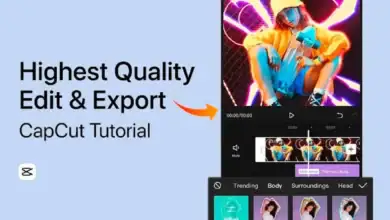
How to Sync Video with Music Beat in CapCut
Perfect beat synchronization is one of the most powerful techniques in modern video editing. When your cuts, transitions, effects, and motion align precisely with the rhythm of the soundtrack, your video instantly feels more dynamic, immersive, and professional. Whether you are creating short form social media content, cinematic travel edits, motivational reels, or product promotions, learning how to sync video with music beat in CapCut can significantly improve your production quality.
CapCut is a feature rich video editing application developed by ByteDance. It offers advanced timeline controls, automatic beat detection, waveform visualization, keyframe animation, speed curves, and precision trimming tools. These features make it suitable for both beginners and experienced editors who want frame accurate synchronization.
This detailed guide explains not only how to sync video with music beats, but also why it works, when to use it, and how to avoid common editing mistakes.
Why Beat Sync Matters in Modern Video Editing
Music drives emotion. When visuals align with rhythm, the brain processes the experience as more satisfying and intentional. This psychological alignment increases engagement and keeps viewers watching longer.
Beat synced editing improves:
• Viewer retention rate
• Emotional impact
• Perceived production quality
• Shareability on social platforms
• Algorithm performance
Platforms such as TikTok, Instagram, and YouTube prioritize content that keeps users engaged. Rhythm based edits naturally hold attention because viewers subconsciously anticipate the next beat.
When editing feels random or disconnected from audio, viewers sense inconsistency. Proper synchronization eliminates that problem.
Understanding Music Structure Before Syncing
Before using tools, you should understand basic music structure. This improves editing accuracy.
Most songs contain:
• Intro
• Verse
• Pre chorus
• Chorus or drop
• Bridge
• Outro
Strong beats usually occur during chorus sections or bass drops. Softer beats occur in verses. Identifying these parts helps you plan pacing.
For example:
• Slow intro equals slow transitions
• Chorus equals fast cuts and energetic effects
• Drop equals dramatic zoom or flash effect
Professional editors always analyze music before cutting clips.
Method 1: Using Automatic Beat Detection in CapCut
CapCut offers a built in beat analysis tool that automatically identifies rhythm peaks.
Step 1: Import Your Media
Open CapCut
Tap New Project
Add your video clips
Import your chosen music track
Ensure your music is high quality with clear bass and drums. Poor quality audio reduces detection accuracy.
Step 2: Activate Beat Detection
Tap the audio layer on timeline
Select Match Cut
Choose Beat or Auto Generate
CapCut scans the waveform and places beat markers along the track. These markers appear as small visual indicators above the audio timeline.
The software identifies drum kicks, bass hits, and strong rhythmic spikes.
Step 3: Align Clips to Beat Markers
Once markers appear:
• Split video at each marker
• Drag clips to align perfectly
• Add transitions exactly on markers
• Insert text animations on rhythmic peaks
This method is ideal for beginners because it reduces manual analysis. However, automatic detection may not catch subtle beats, so refinement is often necessary.
Method 2: Manual Beat Synchronization for Precision
Professional editors prefer manual syncing because it provides greater control.
Step 1: Zoom Into the Timeline
Pinch to zoom into the timeline until waveform spikes are clearly visible. Each spike usually represents a strong sound.
Clear waveform visibility is essential for frame level precision.
Step 2: Identify Major and Minor Beats
Not all beats are equal. Focus on:
• Bass drops for major cuts
• Snare hits for quick flashes
• Hi hat patterns for micro movements
• Vocal transitions for scene change
Place split cuts exactly where the waveform spikes begin.
Step 3: Trim With Frame Accuracy
Drag clip edges frame by frame until the visual action lands exactly on the beat. Even a delay of two frames can reduce impact.
Watch the edit repeatedly and adjust until movement feels natural.
Step 4: Sync Motion Within Clips
Instead of cutting constantly, you can sync internal movement.
For example:
• Jump action landing on beat
• Camera pan finishing on beat
• Object appearing on drop
• Text popping up on snare hit
This technique looks more professional than rapid cutting.
Method 3: Using Speed Ramping for Dramatic Beat Drops
Speed ramping adds cinematic intensity.
1: Select the Clip
2: Tap Speed
3: Choose Curve
4: Customize the speed graph
Slow down footage before a beat, then accelerate exactly at the drop. This builds anticipation and delivers powerful impact.
This technique is commonly used in:
• Travel videos
• Sports edits
• Action scenes
• Motivational reels
Speed ramps must be smooth. Sudden changes without easing can feel unnatural.
Method 4: Syncing Transitions with Music Energy
Transitions should match music intensity.
For fast electronic tracks:
• Use quick cuts
• Flash transitions
• Light leak bursts
For cinematic orchestral tracks:
• Use fade transitions
• Cross dissolve
• Slow zoom blends
The transition style must match genre mood. Incorrect pairing reduces professionalism.
Advanced Beat Sync Techniques
Once you master basics, you can enhance edits further.
Layered Effects on Beat
Stack effects like:
• Flash overlay
• Shake effect
• Glow highlight
• Color shift
Apply them briefly on strong drops for maximum impact.
Beat Based Text Animation
Add animated captions that scale, bounce, or rotate on rhythm peaks. This works especially well for lyrics and promotional content.
Multi Camera Beat Cuts
If you have multiple angles, switch camera view on every second beat. This creates dynamic pacing without overwhelming viewers.
How to Fine Tune Synchronization
After completing initial edit:
• Watch with headphones
• Slow playback speed for review
• Adjust frame by frame
• Remove extra frames if lag appears
• Preview full screen before exporting
Perfection requires multiple revisions.
Common Mistakes to Avoid
Even experienced editors make mistakes.
Avoid:
• Over cutting every single beat
• Ignoring music build up
• Using mismatched transitions
• Applying excessive shake effects
• Forgetting to balance audio levels
Good editing feels natural, not forced.
Best Music Genres for Beat Sync Edits
Different genres require different pacing strategies.
- EDM works well for high energy jump cuts.
- Hip hop pairs well with punch based transitions.
- Cinematic orchestral suits slow motion and dramatic zooms.
- Pop music works for balanced rhythmic storytelling.
- Always adjust your editing style according to tempo and mood.
Export Settings for Maximum Impact
Once editing is complete:
• Export in 1080p or 4K resolution
• Choose 60fps for smoother motion
• Maintain high audio bitrate
• Avoid heavy compression
Low quality export can shift audio timing slightly, so preview final output before uploading.
Final Thoughts
Learning how to sync video with music beat in CapCut is a foundational editing skill that separates average content from professional quality productions. By understanding music structure, mastering both automatic and manual beat detection, and applying advanced techniques like speed ramping and layered effects, you can dramatically elevate your video content.
Consistent practice is key. The more you analyze music and experiment with timing, the more natural beat synchronization will become.
If you would like, I can also create an SEO optimized version with FAQ schema, meta description, internal linking strategy, and structured headings for better Google ranking on your website.